



When you are using the native Microsoft tools to migrate from Google Workspace (Gmail) into Microsoft 365 the tool works very well. It does have a few little nuances that are important to know about when you are working with it though. Firstly, the way that Microsoft are phasing out the use of ‘LargeItemLimit’ and ‘BadItemLimit’ in all their MRS style batches and moving towards a ‘Approval’ for skipping these kind of items.
It means that if you are running a normal migration batch and it has to skip any items for any reason….. they might be corrupt or unreadable, unable to migrate, or something like that…. then the batch will sit in a ‘Needs Approval’ status in the migration console. It will then be stalled and will require some manual intervention to get it to continue.
This can be problematic if you just kick off the ‘Completion’ of a batch and then go to bed. Haha, not a good idea, as they do need some attention now, sorry!
This is the screen you would see if a batch is sitting in that state.
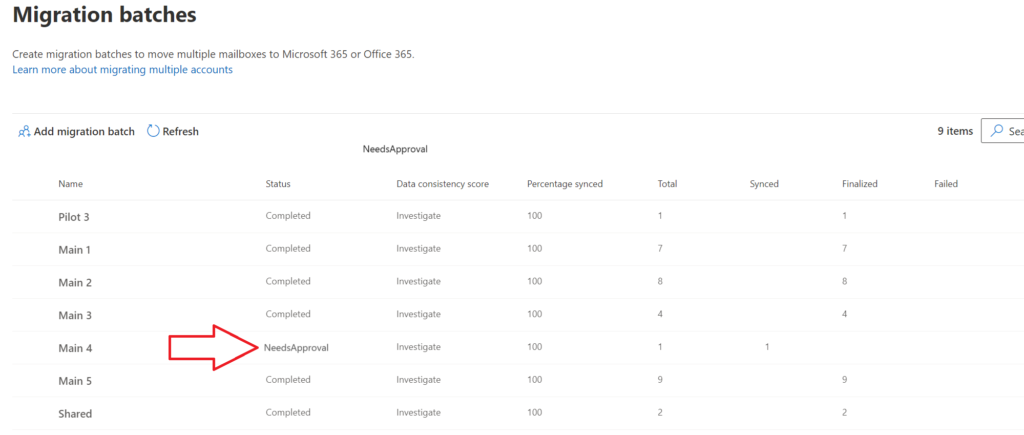
In this case we have a single batch that is requiring approval. Now you can go and click on the batch and ‘Approve’ it, but that takes time and means that you will have to keep monitoring them for more and more that pop up into that state.
A better way is to run a simple Powershell script to automate that whole process. Here is a simple couple of lines that can achieve this very quickly.
Get-MigrationUser | where dataconsistencyscore -eq Investigate | where status -eq NeedsApproval | Set-Migrationuser -ApproveSkippedItemsThis will go through ALL of the current migrations, find any user that is sitting in that state and approve them. Saves going into each batch in the console and doing it. Much faster.
Now, to add to that, what about putting that on a quick autorun so that it just does it every ten minutes? A bit sneaky, but if you are running a lot of migrations and a lot of users, then this could a handy way to just leave it in place and go have a cup of tea.
Try this one out.
# Keep approving users every ten minutes until 4am
do
{
    $mig = Get-MigrationUser | where dataconsistencyscore -eq Investigate | where status -eq NeedsApproval
    $datetime = get-date

    if ($mig.count -gt 0) {

        write-host $datetime " - Running Approval against " $mig.count " users"
        Get-MigrationUser | where dataconsistencyscore -eq Investigate | where status -eq NeedsApproval | set-migrationuser -ApproveSkippedItems
        } else {
        write-host $datetime "No Users in NeedsApproval Status"
        }

        Start-Sleep -Seconds 600

}
while ((Get-Date).hour -ne 4)
Not a bad way to make sure your migration doesn’t stall and you only find out the next morning that a ton of users are still waiting for a simple approval to continue.
Thanks for reading, please remember to check out the YouTube channel here
https://youtube.com/thecloudgeezer
Please reach out to me at mark@thecloudgeezer.com for anything migration related that you may need any assistance with.
Mark – The Cloud Geezer
